Library 2.2
Overview
Video recorded on Mimic Version 1
Library stores all your previously created Recordings and Programs. Programs are collections of Recordings. These can be Played from the Library or Edited.
The User Level selected defines what can be achieved.
The lowest user level can select and run recordings and programs.
The highest user level can create, edit and run.
Read more about User Levels 📄 User Levels (Password Protected) (v2.4).
Select and Run
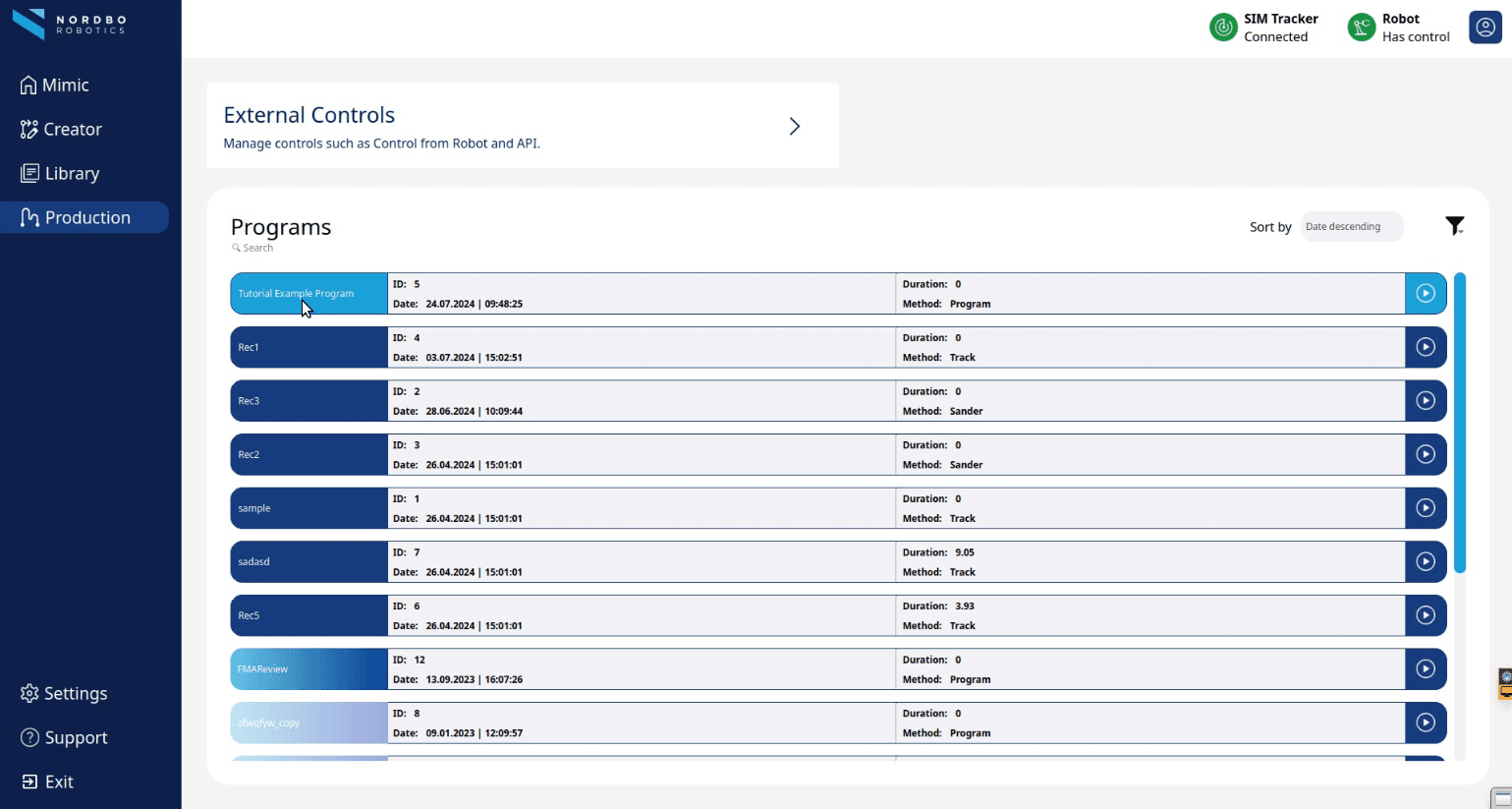
Either select and run programs manually from the Programs overview, or enter External Controls.
External Controls enable different controls of Mimic:
Control from Mimic: By default, it's Mimic that controls the robot. This means that I can interact with the robot through the Mimic interface.
(External control) Control from Robot: Control from robot is more for a production mode. So, the robot can run its code, and when needed, it then calls Mimic.
Manage and Create
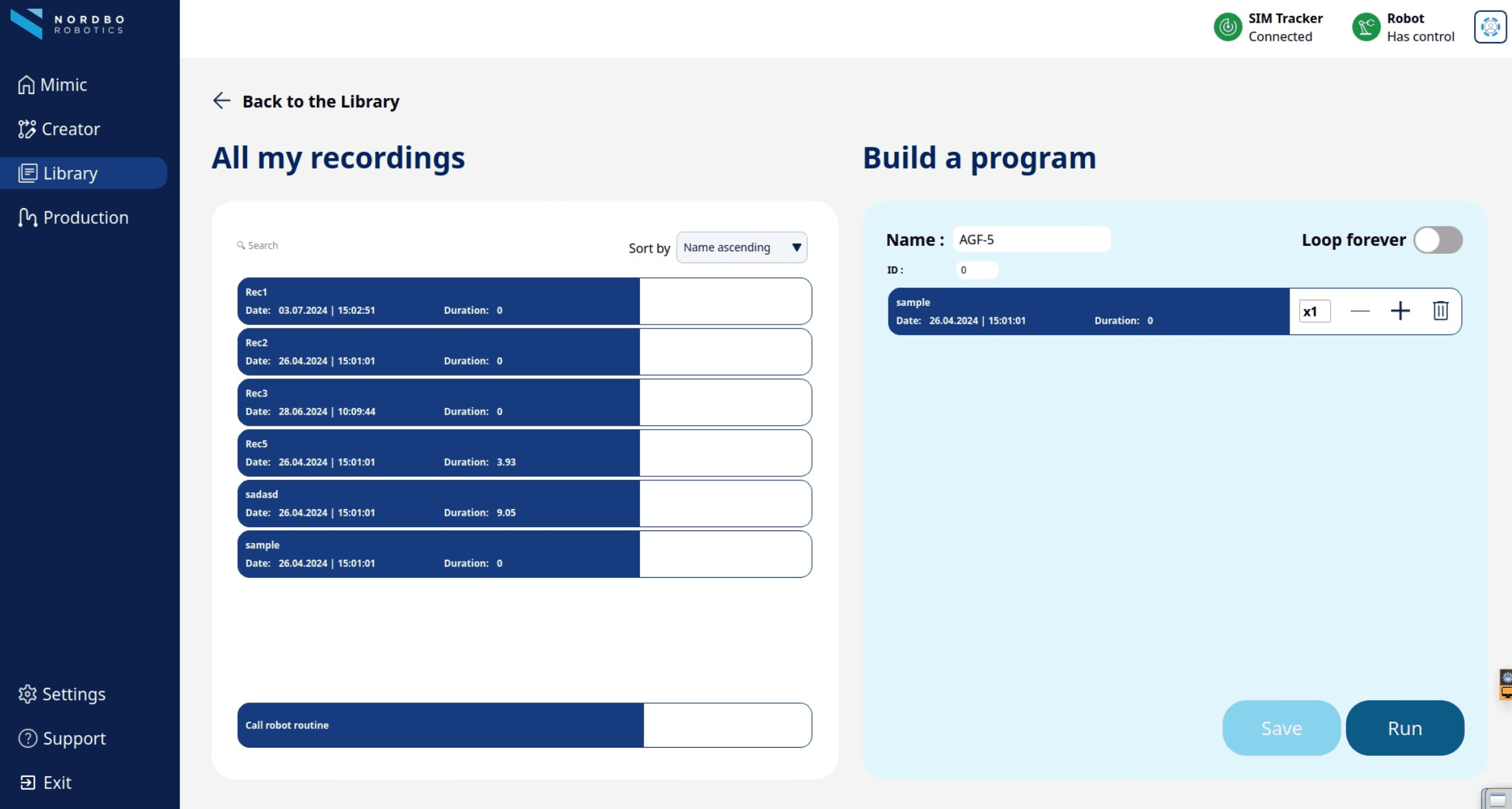
A Program is a collection of recordings and their repetitions intended for building more complete surface treatment (grinding, sanding, polishing) processes. To build a new Program, select one Recording at a time and drag it into a program.
Both Recordings and Programs have Unique ID numbers.
For Teach recordings only: Change Frame
Teach recordings are executed in a specific Frame (see 📄 Frames Settings 2.0 (v2.4)).
In Library, when building a program, it is possible to change that Frame.
The default is the "Recording Reference". This is the Frame that was used while the recording was created (the "original" frame of the recording). It is possible to change to any other defined Frames.
Changing Frame can be useful, when one recording needs to be executed at different locations. By inserting the same recording multiple times in the program, and giving each of them individual Frames, it is possible to reuse that recording multiple places.
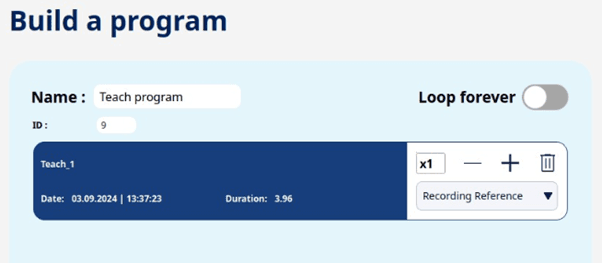
Call robot routines from Mimic
It is possible to define programs on the robot and then call them directly from Mimic.
Examples of robot routines can be:
Home Position
Call another component
Call an abrasive change
This feature uses predefined programs from the robot. These needs to be defined with registers.
How the registers are defined on the robot, is robot dependent.
Please check documentation and requirements with your robot brand supplier.
How to implement robot routines
In Library, when making a program, in the column "All my recordings", the "Call robot routine" is always available:

Drag the "Call robot routine" module to the program structure.
Assign the ID of routine, defined in a register on the robot
(in the example below, the ID is set to 1)
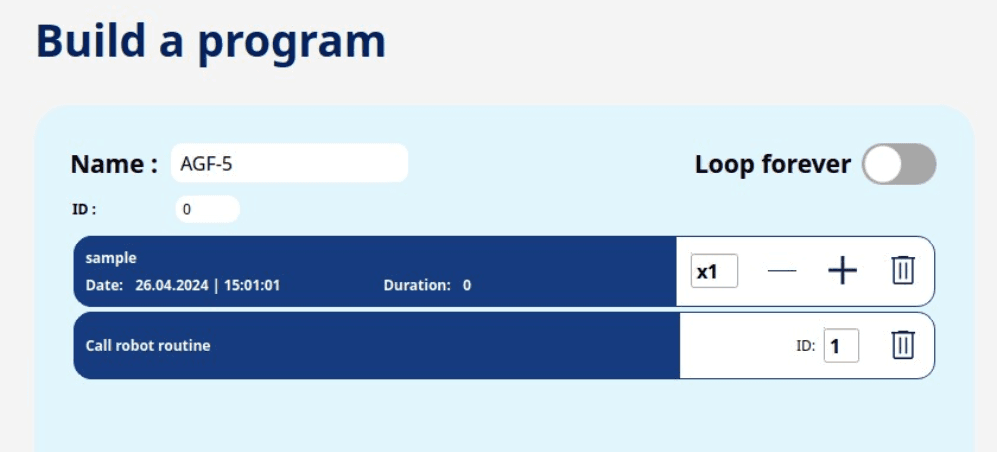
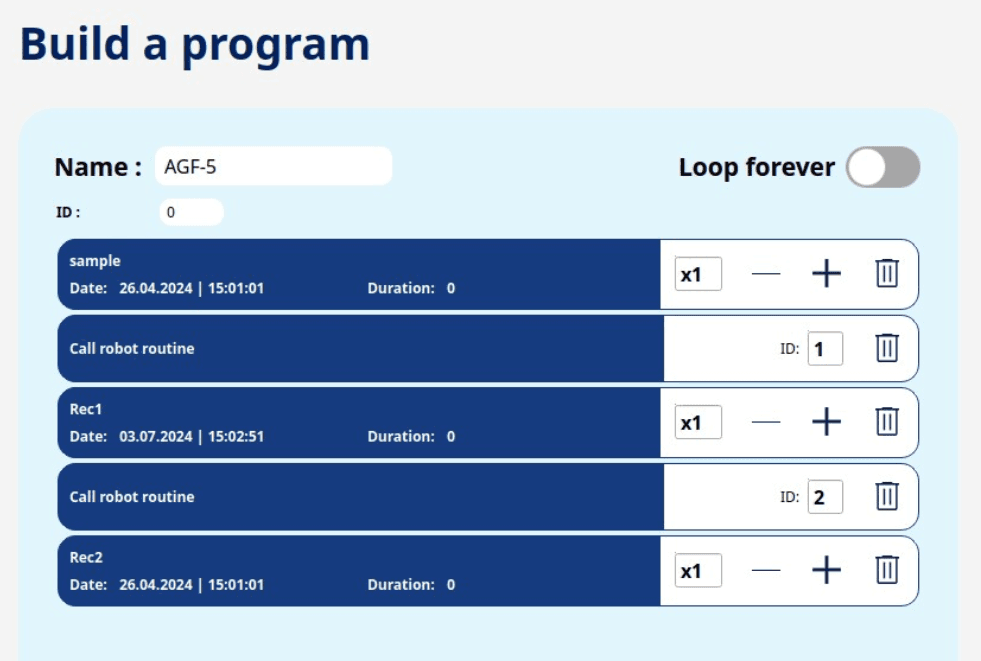
In this example, the program will first run the recording "sample", then run robot routine with ID 1.
It is possible to have several robot routines in the same program. Example: