UR Preparation
In this course, you will learn how to prepare robots from Universal Robots (UR) for using Mimic.
Please note that precision of the use of the robot with Mimic is dependent on the calibration of the robot itself. Not all robots are calibrated by default to satisfy all application requirements. Please check the calibration of the robot prior to use.
Mimic for UR - Robot Preparations
Mimic is compatible with Universal Robots' Polyscope versions:
CB Series: 3.14.3 or newer
eSeries: 5.9.4 or newer
Mimic is compatible with all UR robot models running Polyscope 5.
Please see 📄 Mimic Controller Setup (v2.4) to see what is needed for the Controller setup.
Mimic for UR - Get started
To install Mimic on a UR robot, see the following steps. These will guide you through
How to setup robot and its network
How to install the URCap needed
How to setup Mimic Controller and Nordbo Driver network
How to create the main UR program
Setup Robot Network
In this section, you will find what you need to setup the network on the robot to enable communication with the Mimic Controller. This includes:
The robot
The Nordbo Driver (URCap)
The Mimic Controller
The IPs provided are recommended defaults. They can be changed if needed. If changed, be aware that the IP on the Mimic Controller and the IP specified in the Nordbo Driver URCap must be the same.
Change the IP of the Robot:
To change the IP on a UR, go to Settings > System > Network > IP address
Change the IP of the UR to a static IP (default IP 192.168.1.50)
Set the net mask to 255.255.255.0
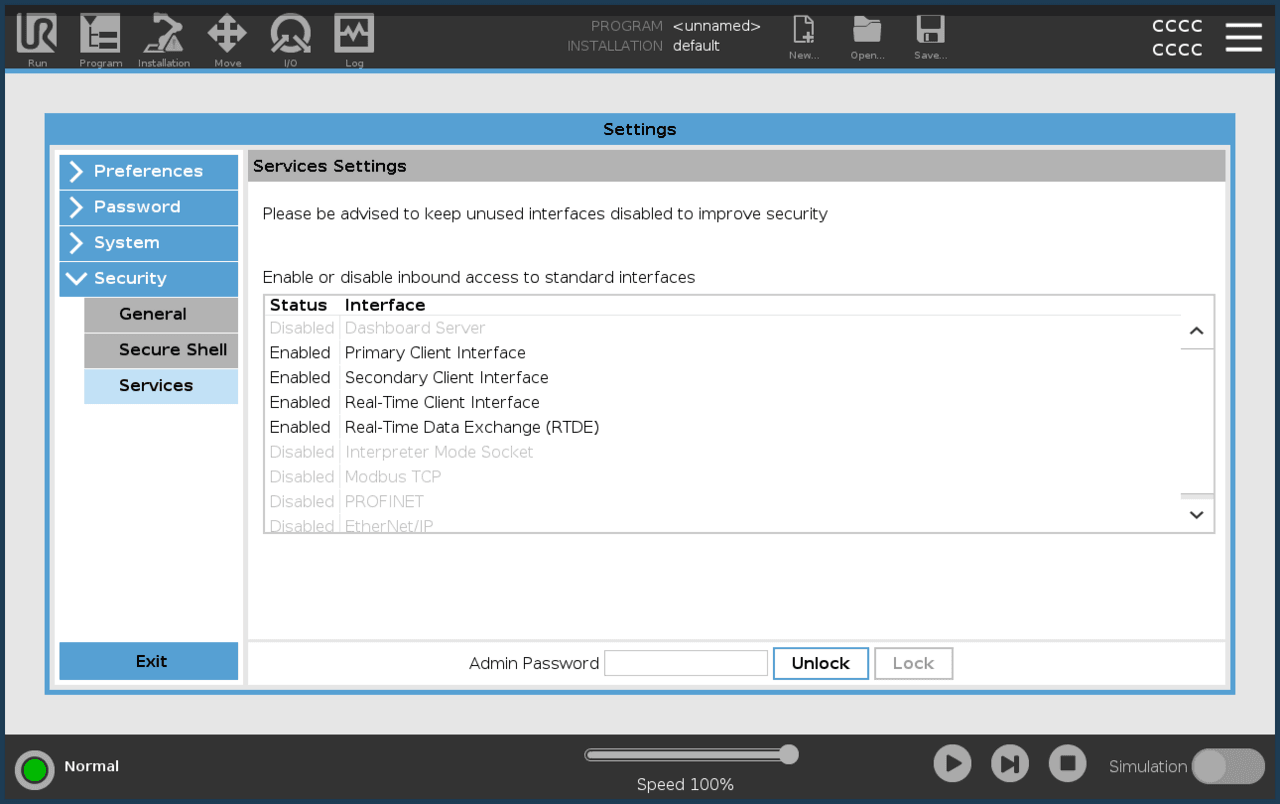
UR Services Needed
In order for Mimic Core to communicate with UR robots, the following services need to be enabled:
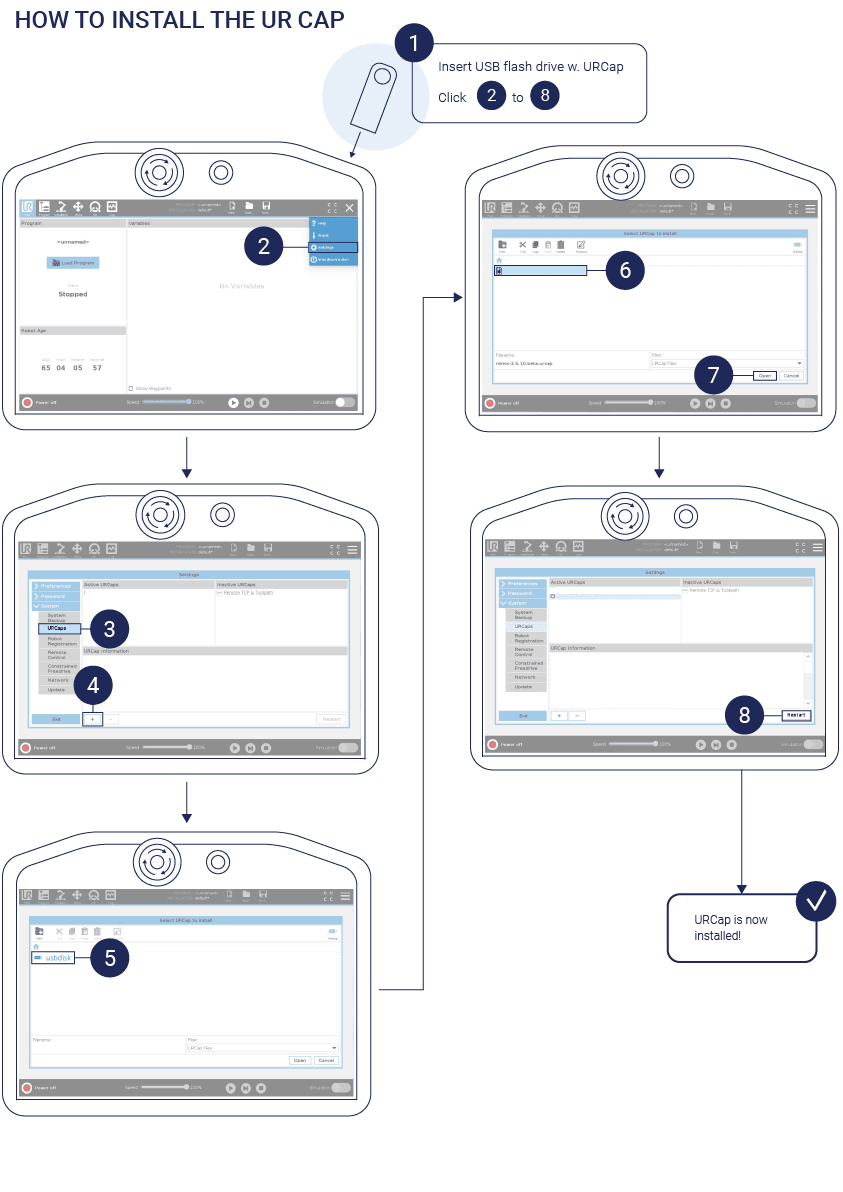
How to Install the URCap Needed and Setup Mimic Controller and Nordbo Driver
Step 1. Insert the USB with the URCaps into the robot Teach Pendant and install the Nordbo Driver URCap
Step 2. Enable the Nordbo Driver and set the Nordbo Driver IP
Go to Installation > Nordbo Driver
Enable the Nordbo Driver by toggling the checkbox
Insert the Mimic Controller IP: 192.168.1.20 (default)
Press "Update" to finish
Save the UR Installation File ("Save..." > "Save UR Installation File...")
How to Create the Main UR Program
There are 2 scenarios for using Mimic on a UR robot:
Control the robot from Mimic (most common use)
Controlling the robot from Mimic means Mimic is given control of the robot. Hence, Mimic functionality is accessed through the Mimic interface.
E.g. to use Mimic's Track, the user can navigate to the Track page, directly in the Mimic interface.
Control Mimic from the robot (advanced use for production)
Controlling Mimic from the robot means the robot remains in control and can call Mimic functionality. Hence, Mimic functionality is accessed through the robot.
E.g. to use Mimic's Track, the robot will call the Track functionality in Mimic and change the Mimic interface to the Track page.
How to create UR programs for each of these scenarios is described in this section.
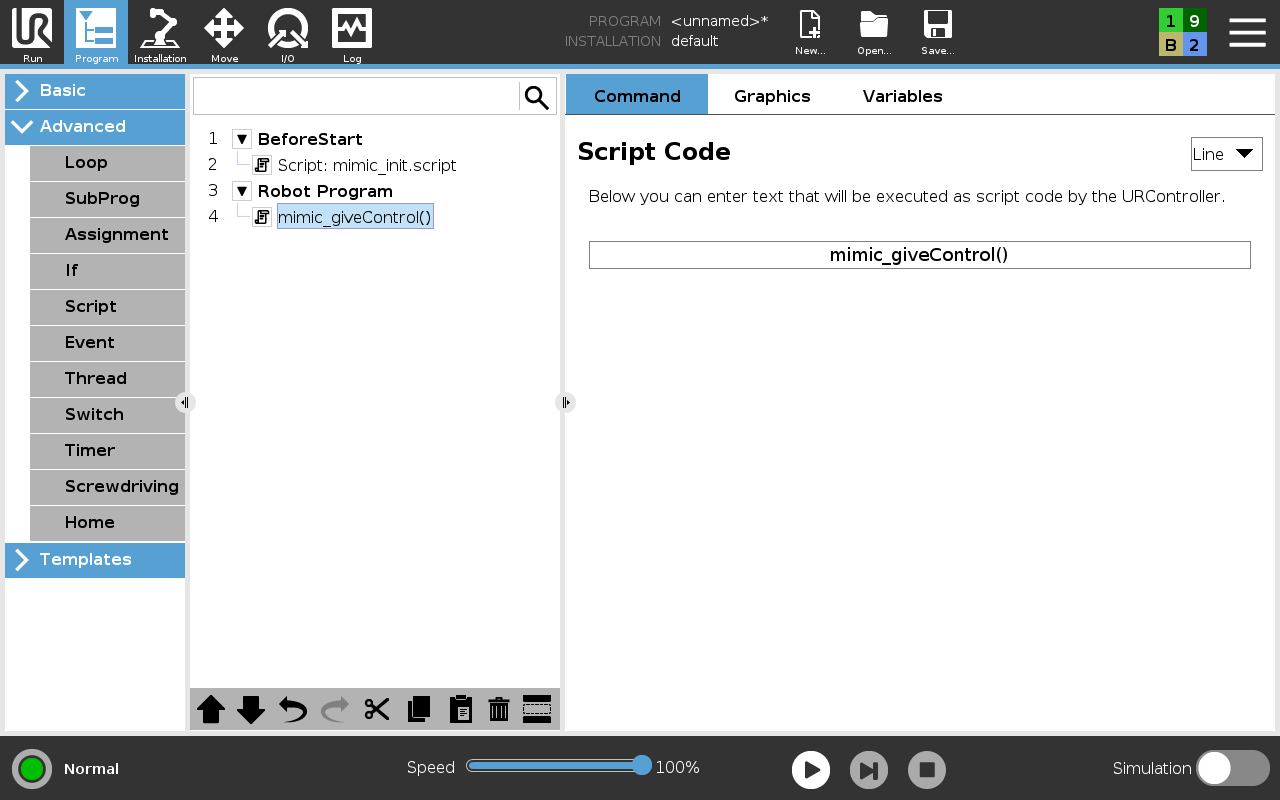
Control the robot from Mimic
To enable the control of the robot from Mimic, setup the program as shown in the picture below.
Control Mimic from the robot
Use the Script: mimic_init.script in BeforeStart.
2 scripts are available to use Mimic functionality:
track_mimic_program( )
Calls Track functionality in Mimic.
run_mimic_program( )
Calls Run functionality in Mimic.
The number specified in ( ) is the ID of the program. Only predefined programs in Mimic can be called. See example below.
The scripts can be used multiple times in the program. See example below.
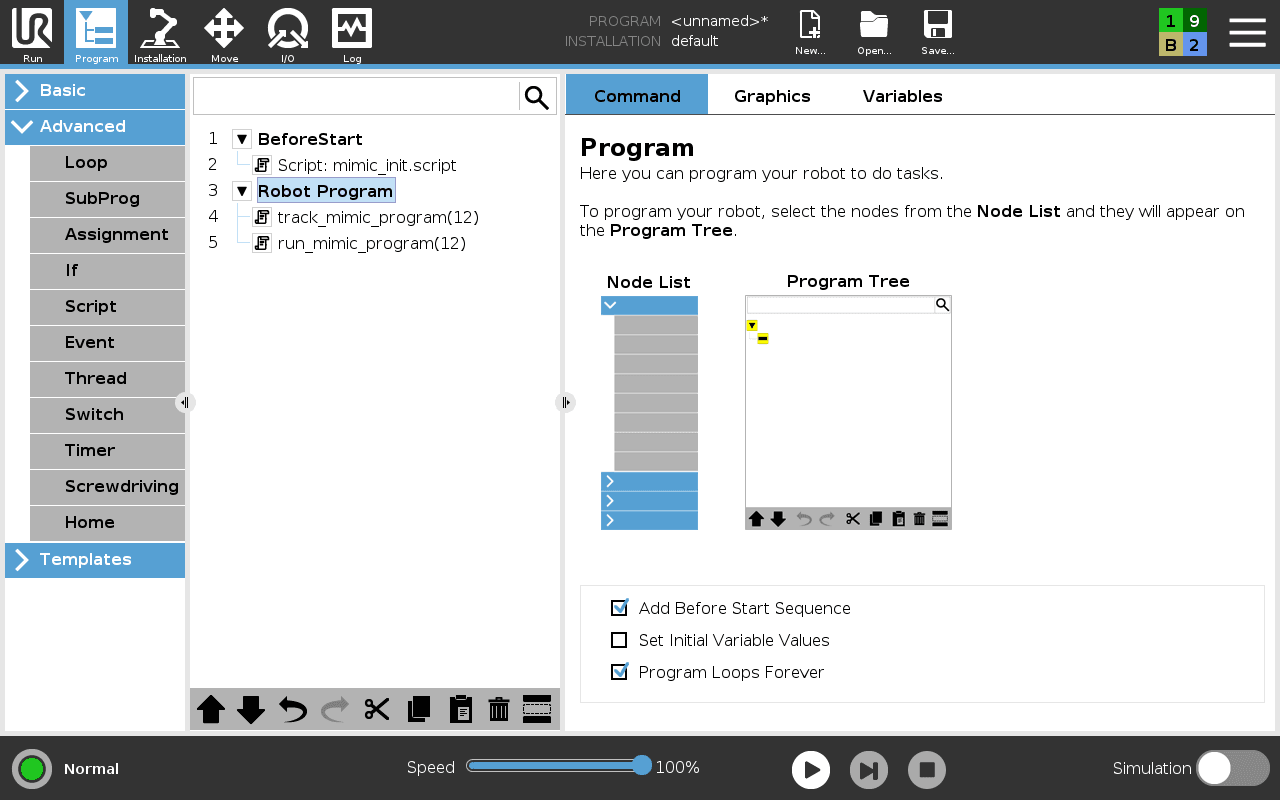
Example: A UR program that calls a Track program with ID 12 and Run program with ID 12
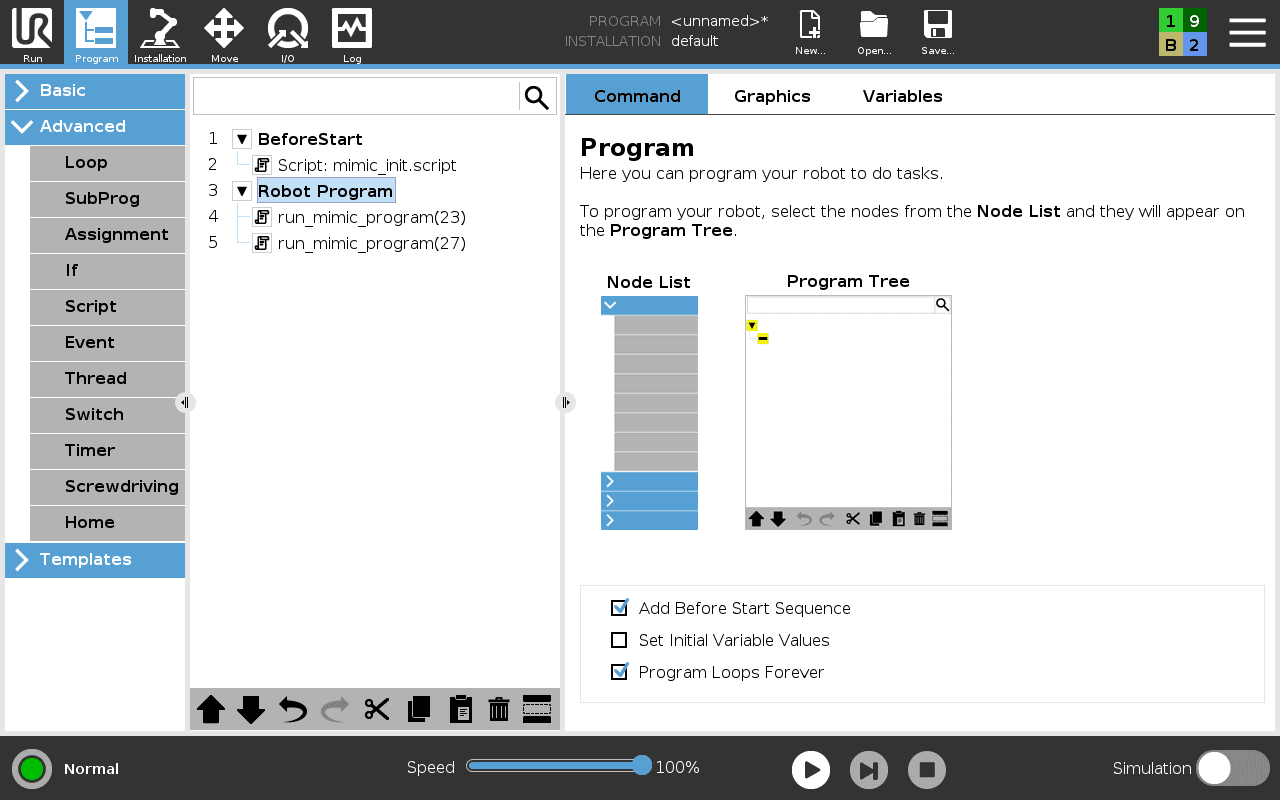
Example: A UR program that calls a Run program with ID 23 and another Run program with ID 27
Explainer: I/O mapping from Mimic to UR
The I/O belonging to Mimic is mapped to the I/O of the UR robot. This mapping is shown below:
Inputs:
Robot[0-7] -> Digital Inputs[0-7]
Robot[8-9] -> Tool Digital Inputs[0-1]
Robot[10-17] -> Configurable Inputs[0-7]
Outputs:
Robot[0-7] -> Digital Outputs[0-7]
Robot[8-9] -> Tool Digital Outputs[0-1]
Robot[10-17] -> Configurable Outputs[0-7]
Using sub-routines with Mimic on UR
To use subroutines on the UR robots, some modifications need to be made to the robot program.
The subroutine functionality is facilitated using the registers nrhw_int_reg[3] and nrhw_int_reg[4].
The nrhw_int_reg[3] register holds a bit value which indicates if a subroutine should be called
The nrhw_int_reg[4] holds the ID of the subroutine.
An example of how this can be implemented is shown below:
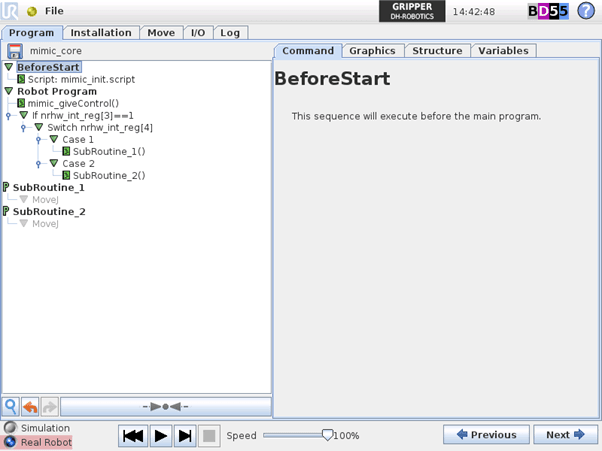
Where SubRoutine_1 and SubRoutine_2 are user defined programs
Your UR robot is now ready to use Mimic.